Just for today, I’m interrupting this little decorating blog to bring you a little computer geek. Don’t run away scared! I’ll be back to my regularly scheduled revamps, spray paint, and glue gun burns on Monday.
As a lover of decorating and DIY blogs, I am always excited when I discover a new one. The tips and tricks and gorgeous rooms I see out there make my heart skip a beat and inspire my weekly Teach Me Tuesday series. The list of blogs I read (okay, covet) grows every single day.
However, with all that excitement comes a lot of time. I like to read each blog entry and comment leave a comment for the author. I have learned so much from other bloggers and want to support them to keep up the good work. I used to just bookmark all of the blogs I liked and would click through my bookmarks one by one to see if any of them had been updated.
Then, I discovered Google Reader. I could simply subscribe to each blog’s feed and all the new posts would show up in my reader (most blogs have “Subscribe” buttons you can click that deliver each new blog post into your reader). Hooray! No more clicking through a ton of links to find brand new posts.
The problem, I soon realized, was that the new posts showed up in my reader and I could read them all there, but I’d have to click an additional link to be taken to the actual blog to leave a comment. And well, I’m lazy. My commenting dropped way off because clicking that 2nd link was too much for me to handle. I’m not saying it makes sense, but that’s just how it was for me.
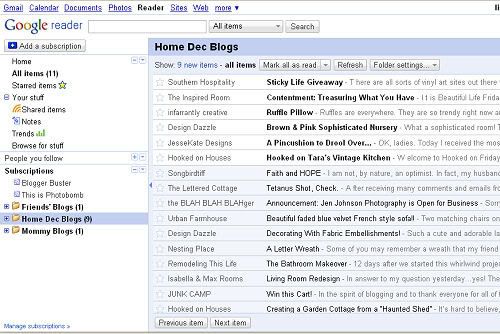
Here’s just a sample of what my Google Reader looks like.
Last week, I found a super special secret about Google Reader. It’s published on Google’s blog, so I guess it’s not so secret. Anyhow, it totally rocks. Did you know that you can put a “Next” button on your browser? Clicking the “Next” button will bring up the next unread post from your reader in it’s original format (i.e. in the actual blog)? Now, I can quickly go through and read brand new posts by my favorite bloggers and easily leave a comment!
Want to try it out? Log into your Google Reader (or sign up – It’s FREE and so easy to use!) and go into Settings. Click the Goodies tab. Then, click and drag the “Next” button to your bookmarks toolbar.
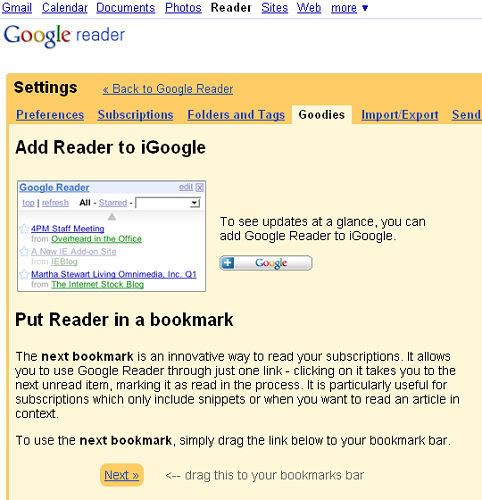
Directions from Google Reader.
If you have any questions about feeds, subscriptions, or feed readers, please let me know. I’m not an expert, but I’d be happy to help you try to figure out how to make your blog reading or writing experience more enjoyable.
UPDATE: If you are using Internet Explorer, this is what you need to do to get your Next button to appear:
In Internet Explorer, right click on the upper gray part of your browser. A little box should pop up that shows your different menu bars. Make sure the “links” one is checked. Once it is, checked, just drag and drop the Next link in Google Reader to the gray area called “Links,” right below the File/Edit/View/Favorites/Tools/Help menu bar. That should be all you need to do!
P.S. I’ve linked some technical terms in this post to sites I think do a good job explaining them. I’m certainly not trying to offend those of you who are extremely computer savvy, but I thought it might help some of us who don’t really understand all that geek speak very well.
P.P.S. I’m totally Hooked on my Next button. I’m adding this to Julia’s “Hooked On” party at Hooked on Houses.